Question: How do I select the corrugated carton flutes and what do they represent?
Answer: The corrugated carton flutes represent the different carton construction types. Within Quick Pallet Maker, the main purpose of their selection is to determine the thickness of the box walls in order to calculate the space the boxes take. This thickness can be overruled by entering the values in the cells at the right of the carton construction selector. You can find more information in the internet through web pages such as this one.
Thursday, March 02, 2006

Saturday, February 25, 2006
Automatic Input
Question: Can Quick Pallet Maker be used for plugging into a third-party application so it can import data from my order system and then export it into another system of mine?
Answer: We're working on it. We will create a version of Quick Pallet Maker without an interface that can be executed remotely, import instructions and produce automatically a shipment file, all in XML. The advantage of using XML is that first it is a easy to read format (either by software parsers or by the naked eye) and second that the files can easily be transformed into whichever format you need for your application and back. We will post the developer information as we finish this upgrade.
Answer: We're working on it. We will create a version of Quick Pallet Maker without an interface that can be executed remotely, import instructions and produce automatically a shipment file, all in XML. The advantage of using XML is that first it is a easy to read format (either by software parsers or by the naked eye) and second that the files can easily be transformed into whichever format you need for your application and back. We will post the developer information as we finish this upgrade.
Thursday, February 09, 2006
Quick Pallet Maker 4.0.3 Ready
Tuesday, February 07, 2006
Multi-Packs
Question: Can you use Quick Pallet Maker to calculate multiple types of primary packages in a box?
Answer: Short answer: not yet. Long answer: yes, you can calculate multi-packs in a two-step process.
First, open a new Container Fill window and enter the box internal dimensions in the container dimensions slots. Then, create new boxes with the primary package dimensions and their amounts. Add the boxes to the list and check the "optimize sections" box in the bottom left section of the window and then click on the second tab. The result should show how the packages would look.
The second part of this procedure is to calculate the box arrangements in pallets by using a new document window starting from Box Dimensions.
Answer: Short answer: not yet. Long answer: yes, you can calculate multi-packs in a two-step process.
First, open a new Container Fill window and enter the box internal dimensions in the container dimensions slots. Then, create new boxes with the primary package dimensions and their amounts. Add the boxes to the list and check the "optimize sections" box in the bottom left section of the window and then click on the second tab. The result should show how the packages would look.
The second part of this procedure is to calculate the box arrangements in pallets by using a new document window starting from Box Dimensions.
Using The Box Fill Feature
Question: How do you use the Box Fill feature?
Answer: Here's an example. If you wish to change the default boxes, please refer to this other example.
Answer: Here's an example. If you wish to change the default boxes, please refer to this other example.
Monday, February 06, 2006
Where Are The Instructions?
Question: Do you have a user manual for Quick Pallet Maker?
Answer: Yes, you can find the updated HTML manual under the Help menu in the QPM application and also in the following link. You can also download an older PDF manual that covers up to version 3.3. through this link. There's also a version in Spanish here. We also recommend taking a look at the examples page. If there is something that we may have not covered, please feel free to contact product support.
Answer: Yes, you can find the updated HTML manual under the Help menu in the QPM application and also in the following link. You can also download an older PDF manual that covers up to version 3.3. through this link. There's also a version in Spanish here. We also recommend taking a look at the examples page. If there is something that we may have not covered, please feel free to contact product support.
Loading Drums Onto Pallets & Containers
Question: How do I load drums or cylinders onto pallets and then onto containers?
Answer: Here's an example on how to do it.
Answer: Here's an example on how to do it.
Tuesday, January 24, 2006
Update Notices
Question: How come you do not send update email notices anymore?
Answer: Starting from version 4.0., if an internet connection is available, Quick Pallet Maker will check our servers to see if there is a newer version available. If so, a small window will appear indicating the new version. This is much better than adding to the current email congestion and less work for all parties. Just make sure that you have downloaded at least version 4.0 to be in the loop.
Answer: Starting from version 4.0., if an internet connection is available, Quick Pallet Maker will check our servers to see if there is a newer version available. If so, a small window will appear indicating the new version. This is much better than adding to the current email congestion and less work for all parties. Just make sure that you have downloaded at least version 4.0 to be in the loop.
Quick Pallet Maker 4.0.2 Ready
Sunday, January 22, 2006
Chinese Version Doesn't Look Well
Question: I am using the Chinese Simplified version of Quick Pallet Maker and the characters do not appear in all of the windows. What can I do?
Answer: If you had been using a non-Chinese font prior to the use of Quick Pallet Maker or if the System font is a non-Chinese font, then you need to change the QPM font to a Chinese font. To do this, run QPM and open a new window starting from Primary Package, select a Chinese font from the Edit menu and then quit QPM. Once you run QPM again, you should see all the characters correctly.
Answer: If you had been using a non-Chinese font prior to the use of Quick Pallet Maker or if the System font is a non-Chinese font, then you need to change the QPM font to a Chinese font. To do this, run QPM and open a new window starting from Primary Package, select a Chinese font from the Edit menu and then quit QPM. Once you run QPM again, you should see all the characters correctly.
Container Not In The List
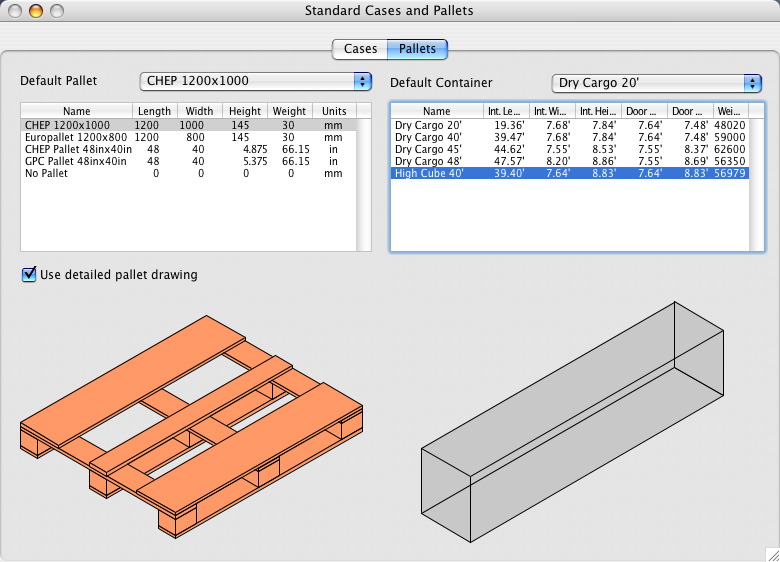
Question: How come the list of containers does not include the 40' High Cube container?
Answer: When we set up the defaults, we used the first containers that would come to mind. However, it is very easy to add more types and/or edit the ones that already exist. To add a new container, open the Standard Cases and Pallets window and choose one from the list. Then, use the "Duplicate" command from the Edit menu to create a replica at the bottom of the list. To edit any of the container dimensions or the container name, double-click the appropriate cell and change the values. For an example, see the bottom screenshot.

Answer: When we set up the defaults, we used the first containers that would come to mind. However, it is very easy to add more types and/or edit the ones that already exist. To add a new container, open the Standard Cases and Pallets window and choose one from the list. Then, use the "Duplicate" command from the Edit menu to create a replica at the bottom of the list. To edit any of the container dimensions or the container name, double-click the appropriate cell and change the values. For an example, see the bottom screenshot.
Thursday, January 19, 2006
Big XML Files
Question: The container XML files that are produced by Quick Pallet Maker sometimes take up too much disk space. What can I do if I want to send it to someone, for example?
Answer: In some cases, there are containers that can have a large amount of boxes or pallets. Each box and pallet is represented by it's own branch in the XML tree of the container file. However, since the files are text files, they can be easily compressed in the .zip format with the utilities that are available in Windows XP and in the Mac OSX operating systems. For people using older OSes, you can download WinZip for Windows or use Stuffit, which is included in Mac OS. Compression is very effective. For example, a 12.8MB container file can be compressed to 108KB (easily emailed).
Answer: In some cases, there are containers that can have a large amount of boxes or pallets. Each box and pallet is represented by it's own branch in the XML tree of the container file. However, since the files are text files, they can be easily compressed in the .zip format with the utilities that are available in Windows XP and in the Mac OSX operating systems. For people using older OSes, you can download WinZip for Windows or use Stuffit, which is included in Mac OS. Compression is very effective. For example, a 12.8MB container file can be compressed to 108KB (easily emailed).
Friday, January 06, 2006
Differences Between Windows and Mac Versions
Question: Are there any differences between the Windows and Mac OSX versions of Quick Pallet Maker?
Answer: No. Both versions work exactly the same, even if the appearance is somewhat different due to the operating systems. The registration numbers also work the same, so if you buy a license for Windows and then change to a Mac, or vice-versa, your license number will work (just remember to uninstall QPM from the previous machine). However, since QuickTime is included with Mac OSX and not necessarily included in your Windows PC, it is important to download it from the Apple website.
Answer: No. Both versions work exactly the same, even if the appearance is somewhat different due to the operating systems. The registration numbers also work the same, so if you buy a license for Windows and then change to a Mac, or vice-versa, your license number will work (just remember to uninstall QPM from the previous machine). However, since QuickTime is included with Mac OSX and not necessarily included in your Windows PC, it is important to download it from the Apple website.
Thursday, January 05, 2006
"Demo" or "Purchase"?
Question: I already paid for the application. However, when I install it in Windows, the installation program asks me if I want to run it as a Demo or if I want to purchase it. What should I do?
Answer: Click "Demo". If you have paid for the application and registered it correctly, Quick Pallet Maker should be able to recognize your registration information and run normally. If you want to purchase another license, you can click on "Purchase".
Answer: Click "Demo". If you have paid for the application and registered it correctly, Quick Pallet Maker should be able to recognize your registration information and run normally. If you want to purchase another license, you can click on "Purchase".
Tuesday, January 03, 2006
Container Movie Export Is Slow
Question: How come the Container Movie export process is unbearably slow? I am using Windows XP and it says that the application (Quick Pallet Maker) does not respond.
Answer: The real answer to this question is that the container movie export code was copied from the pallet movie export code. Although the speed is OK for pallets with not so many boxes, it really slows down when exporting container movies with more than a thousand boxes, for example. This is because each frame has the size of the drawing and there are more than a thousand frames. If you were exporting a container full of pallets, it would be faster. Anyhow, although Windows is telling you that the application does not respond, you can wait it out to get your movie. Just make sure that you have installed Apple QuickTime.
Since we don't want to waste your time, we just wrote a different method for exporting movies that is much faster. We will include it in Quick Pallet Maker 4.0.2, which is our next update. For those of you who can't wait, you can download the English version for Windows here and for Mac OSX here.
Answer: The real answer to this question is that the container movie export code was copied from the pallet movie export code. Although the speed is OK for pallets with not so many boxes, it really slows down when exporting container movies with more than a thousand boxes, for example. This is because each frame has the size of the drawing and there are more than a thousand frames. If you were exporting a container full of pallets, it would be faster. Anyhow, although Windows is telling you that the application does not respond, you can wait it out to get your movie. Just make sure that you have installed Apple QuickTime.
Since we don't want to waste your time, we just wrote a different method for exporting movies that is much faster. We will include it in Quick Pallet Maker 4.0.2, which is our next update. For those of you who can't wait, you can download the English version for Windows here and for Mac OSX here.
Sunday, January 01, 2006
Graphics Won't Appear In Web Browser
Question: When I export from the web browser, the graphics in the previewed web page do not appear at all.
Answer: Please check if Apple QuickTime has been installed. If not, you can download it for free (no ads, spyware, etc.) at the Apple web site. QuickTime is needed also for exporting pallet, container and box movies and for exporting different graphic formats.
Answer: Please check if Apple QuickTime has been installed. If not, you can download it for free (no ads, spyware, etc.) at the Apple web site. QuickTime is needed also for exporting pallet, container and box movies and for exporting different graphic formats.
Quick Pallet Maker Won't Print
Question: When I try to print a pallet, Quick Pallet Maker takes me to the second tab of the detailed report and does nothing.
Answer: This happens when are trying to print from the Results or Available Solutions window (the one with the long list of pallets at the bottom) and the page orientation in the Page Setup is "Portrait" instead of "Landscape". In this case, QPM takes you to the second tab of the Detailed Report from which you can print the pallet report through your web browser. If you had selected "Landscape" in the Page Setup, you could have printed from the Results window through the first tab of the Detailed Report.
Answer: This happens when are trying to print from the Results or Available Solutions window (the one with the long list of pallets at the bottom) and the page orientation in the Page Setup is "Portrait" instead of "Landscape". In this case, QPM takes you to the second tab of the Detailed Report from which you can print the pallet report through your web browser. If you had selected "Landscape" in the Page Setup, you could have printed from the Results window through the first tab of the Detailed Report.
Why Doesn't QPM Save After Registering?
Question: I bought the application and registered it correctly. However, once I try to save files, the commands are still greyed out.
Answer: This is one of the most frequently asked questions among new users. The reason for this is that not necessarily, all data can be saved from all windows due to how the software was designed. For example, you cannot export box or pallets from the Container Fill window because they have either already been imported from an existant file or their dimensions have been entered manually and we considered that it was more practical to save the data in a text file or spreadsheet and import it like in the following example. In this specific case, we will continue to listen to our customers' requests and add this feature in an upcoming update.
The types of files that can be exported from the other windows are the following:
Input Window: From this window, you can save the input data (.qpm file) which includes the primary package information and box and pallet settings.
Results Window (Available Solutions): From this window, you can save the input data, boxes and pallets. The latter can be saved individually using the "Save Report" command from the File menu or in a group of pallets by selecting more than one and then choosing "Save Solutions..." to select a folder into which the files will be saved.
Detailed Report: You can save the pallet file here, too.
Answer: This is one of the most frequently asked questions among new users. The reason for this is that not necessarily, all data can be saved from all windows due to how the software was designed. For example, you cannot export box or pallets from the Container Fill window because they have either already been imported from an existant file or their dimensions have been entered manually and we considered that it was more practical to save the data in a text file or spreadsheet and import it like in the following example. In this specific case, we will continue to listen to our customers' requests and add this feature in an upcoming update.
The types of files that can be exported from the other windows are the following:
Input Window: From this window, you can save the input data (.qpm file) which includes the primary package information and box and pallet settings.
Results Window (Available Solutions): From this window, you can save the input data, boxes and pallets. The latter can be saved individually using the "Save Report" command from the File menu or in a group of pallets by selecting more than one and then choosing "Save Solutions..." to select a folder into which the files will be saved.
Detailed Report: You can save the pallet file here, too.
Happy New Year!!
For those of you that celebrate it, us at Koona Software hope that the year 2006 will bring you happiness and fulfillment. Our best wishes to our software users and visitors.
Tuesday, December 27, 2005
Converting Saved Data
Question: When I save a box or pallet file in inches, why does it open in millimeters when I load it into Quick Pallet Maker?
Answer: The dimensions in the saved box or pallet files will be converted automatically to the units in which you are working currently. For example, if you are working in millimeters, Quick Pallet Maker will multiply the lengths by 25.4 and divide the weight by 2.205 to convert to mm and kg, respectively. If you want to work with inches, then you can change the work units through the Tools menu (when you are starting from box dimensions to create pallets) or by changing the default dimensions in the Preferences/Settings window. Under Windows OS, the Settings window can be opened from the Tools menu. Under Mac OSX, the Preferences window is opened from the Apple menu.
Answer: The dimensions in the saved box or pallet files will be converted automatically to the units in which you are working currently. For example, if you are working in millimeters, Quick Pallet Maker will multiply the lengths by 25.4 and divide the weight by 2.205 to convert to mm and kg, respectively. If you want to work with inches, then you can change the work units through the Tools menu (when you are starting from box dimensions to create pallets) or by changing the default dimensions in the Preferences/Settings window. Under Windows OS, the Settings window can be opened from the Tools menu. Under Mac OSX, the Preferences window is opened from the Apple menu.
Subscribe to:
Posts (Atom)